
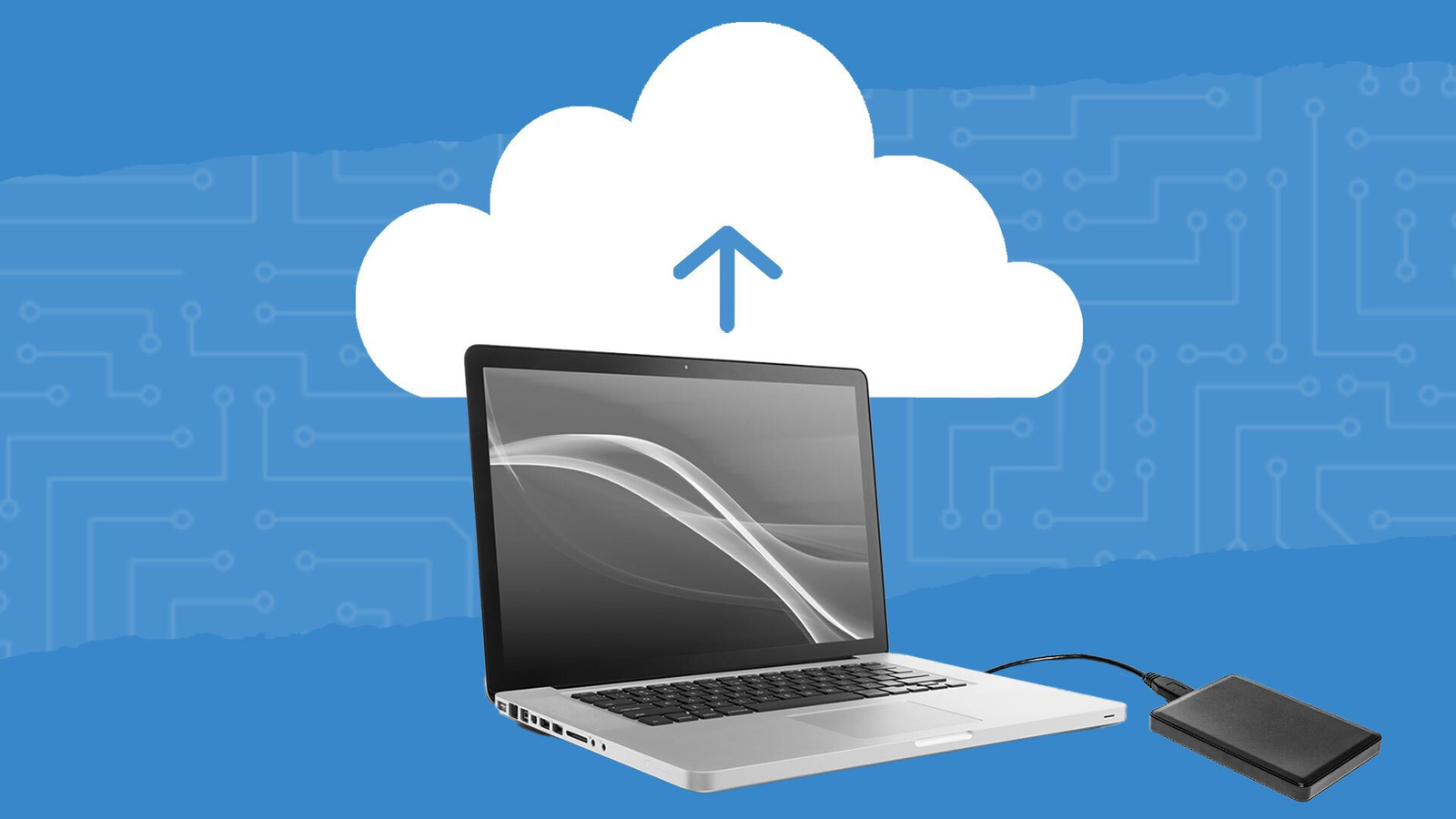
Hard drives fail, phones get lost and files are deleted by mistake. Ransomware and other attacks can also lock you out of your own data. If you do not have a backup, years of photos, documents and messages can vanish in seconds. The good news is that setting up a backup is easier than most people think. This beginner guide explains the basics and gives you a simple plan you can finish in an afternoon.
Why backups matter
- Hardware failure. Every drive eventually wears out.
- Loss or theft. A missing phone or laptop takes its data with it.
- Human error. Accidental deletion and overwritten files are very common.
- Malware and ransomware. A clean backup lets you restore without paying criminals.
- Disasters. Fire, floods and power surges can destroy devices and nearby copies.
The 3-2-1 backup rule
A simple rule used by many professionals is 3-2-1: keep three copies of important data, on two different types of storage, with one copy stored in a different location. For example, your files on your computer, a copy on an external drive at home and a copy in the cloud. If one copy fails, the others still protect you.
What should you back up?
- Photos and videos
- Documents, school or work files
- Contacts, messages and app data
- Passwords exported securely, or stored in a password manager
- Website, business and financial records, which matter if you run a project such as those in our low-budget online business guide
Backup options compared
Cloud storage
Cloud services copy your files to remote servers automatically. They are convenient, protect against local disasters and let you reach files from any device. Free plans have limited space, so you may need a paid plan for large photo libraries. Protect the account with a strong password and two-step verification, as described in our account security guide.
External hard drives and USB drives
A physical drive gives you fast, private copies without monthly fees. The drawback is that you must remember to connect it, and it can fail or be lost. Store it away from your computer for safety.
Network storage
Home and small-office users can use a network storage device that backs up several computers automatically. It costs more to set up but works well for families and teams.
Step-by-step: set up a simple backup plan
- List what matters. Decide which folders and devices you cannot afford to lose.
- Choose two methods. For example, a cloud service and an external drive.
- Turn on automatic backup. Use the built-in tools on your phone and computer, such as system backup features and photo sync.
- Run the first backup. It may take hours, so leave it connected and powered.
- Test a restore. Open a few backed-up files, or restore one, to confirm that it works.
- Check regularly. Set a monthly reminder to look at the latest backup date.
Common backup mistakes
- Keeping the only copy on the same device or in the same room.
- Never testing whether a backup can be restored.
- Leaving an external drive always connected, which can expose it to ransomware.
- Forgetting phones, tablets and messaging apps.
- Using a cloud account with a weak password.
Frequently asked questions
How often should I back up?
Automatic daily or continuous backup is ideal for active files. For rarely changed data, a monthly copy may be enough.
Is cloud sync the same as backup?
Not exactly. Sync mirrors changes, including deletions, across devices, while a backup keeps earlier versions. Many services offer both, so check which one you are using.
How much storage do I need?
Add up the size of your photos, videos and documents, and choose a plan or drive with at least double that amount to allow room to grow.
Final thoughts
A backup is like insurance: you hope never to use it, but you will be very glad it exists if something goes wrong. Follow the 3-2-1 rule, automate the process and test it from time to time. For more practical advice, explore our Tech category, and see our budget gaming setup guide to protect your game progress as well.